
Setting up and connecting to the office
The first time you open the app, you set it up once. It takes two steps: the license number, then the pairing with the office.
1. Enter the license number
Section titled “1. Enter the license number”Type the license number you got from your office and click Continue. Capital letters and dashes are added for you.
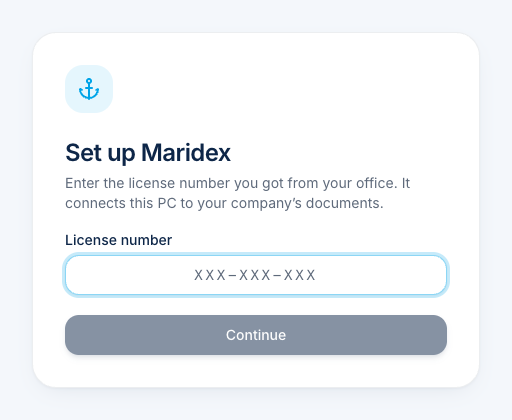
If the number is not accepted, the app tells you why, for example “This license number is not known”. Check the number, or ask your office.
2. Connect this PC to the office
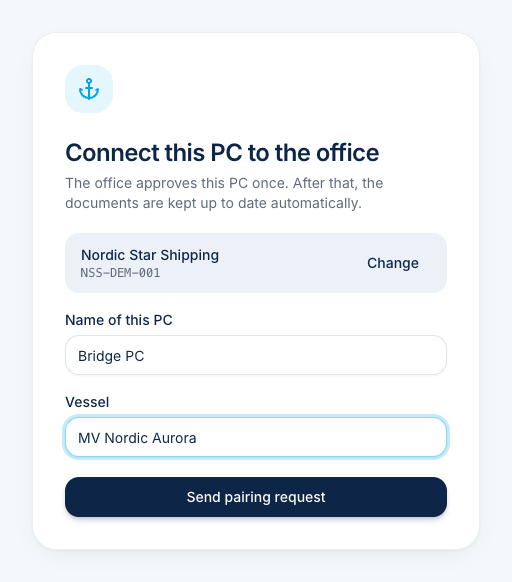
Section titled “2. Connect this PC to the office”The app now shows Connect this PC to the office.
- Name of this PC – a name the office will recognise, e.g. Bridge PC or Engine control room.
- Vessel – the name of your ship.
- Click Send pairing request.
3. Read the code to the office
Section titled “3. Read the code to the office”The app shows a code and waits for the office.
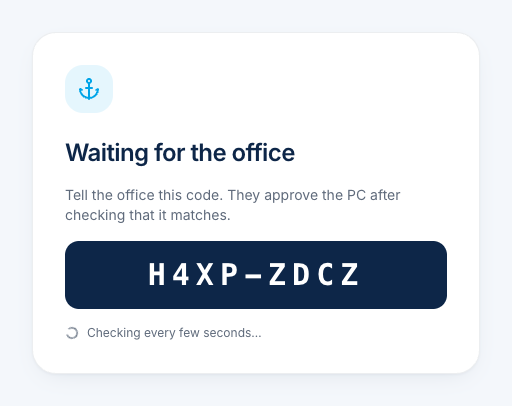
Call or e-mail the office and tell them this code. The office checks that it matches the code they see, and approves the PC. You don’t need to do anything else: the app notices the approval by itself, downloads the documents and opens them.
Did you type the wrong license?
Section titled “Did you type the wrong license?”As long as the pairing request has not been sent, click Change next to the company name and enter another license number.
A product of bitova GmbHbitova.com