
Importing documents by email
Most documents arrive by email: a renewed certificate, a survey report, a new edition of a maker’s manual. Instead of saving and uploading each one, forward the email to your company’s import address. The attachments appear in the Inbox, with a suggestion where each one belongs. You decide: file it, or reject it. Nothing is filed without you.
Your company’s address
Section titled “Your company’s address”Your company has its own import address, for example nordic-7kq2x@in.maridex.app. You get it
from bitova when import by email is set up. Only emails from your company’s own email domains are
accepted. Others are refused, so the address can’t be used by strangers.
- Forward the email as it is: the attachments of a forwarded email are found too.
- Several attachments become several entries, one per file.
- Logos and signature images are left out automatically.
- A master on board can forward documents to the same address. The office files them.
The inbox
Section titled “The inbox”Open Inbox in the menu. The number next to it shows how many attachments wait. The start page lists them under Needs attention, too.
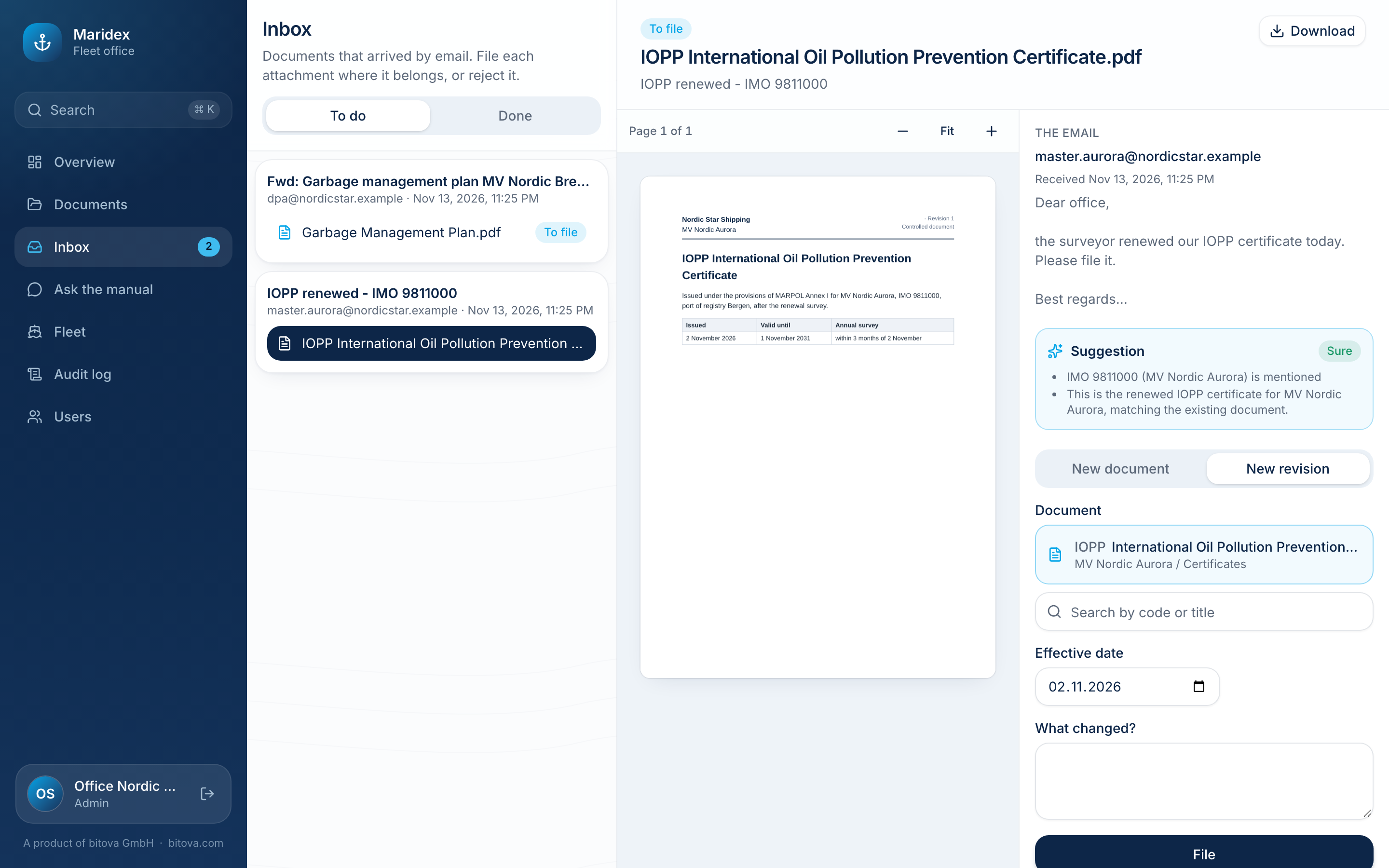
- To do lists the emails with attachments that wait for a decision; Done the ones that are filed or rejected.
- Click an attachment to see it. The preview shows the file itself; on the right you see the email it came with and the suggestion.
The suggestion
Section titled “The suggestion”The system reads each attachment and suggests where it belongs. It says why, for example “IMO 9811000 (MV Nordic Aurora) is mentioned” or “Same code as IOPP International Oil Pollution Prevention Certificate”.
- Sure – the suggestion is unambiguous, for example the same code as an existing document.
- Likely – probably right; check the library and the folder.
- Unsure – no clear match. With no vessel named, a new document is suggested in the Office library, so nothing goes to a ship until you choose.
- Looks like nothing to keep – for example the same file is already filed. The suggestion says where.
A new attachment is read within a minute or two. You can file it already while it shows Being read….
Filing
Section titled “Filing”- Choose New document or New revision.
- For a new document, check the Library and the Folder, the Code and the Title. The note below says who will receive it, e.g. “It will be sent to MV Nordic Aurora only.”
- For a new revision, check the Document it revises. Search for another one by code or title if needed. Add What changed? if you like.
- Check the Effective date and click File.
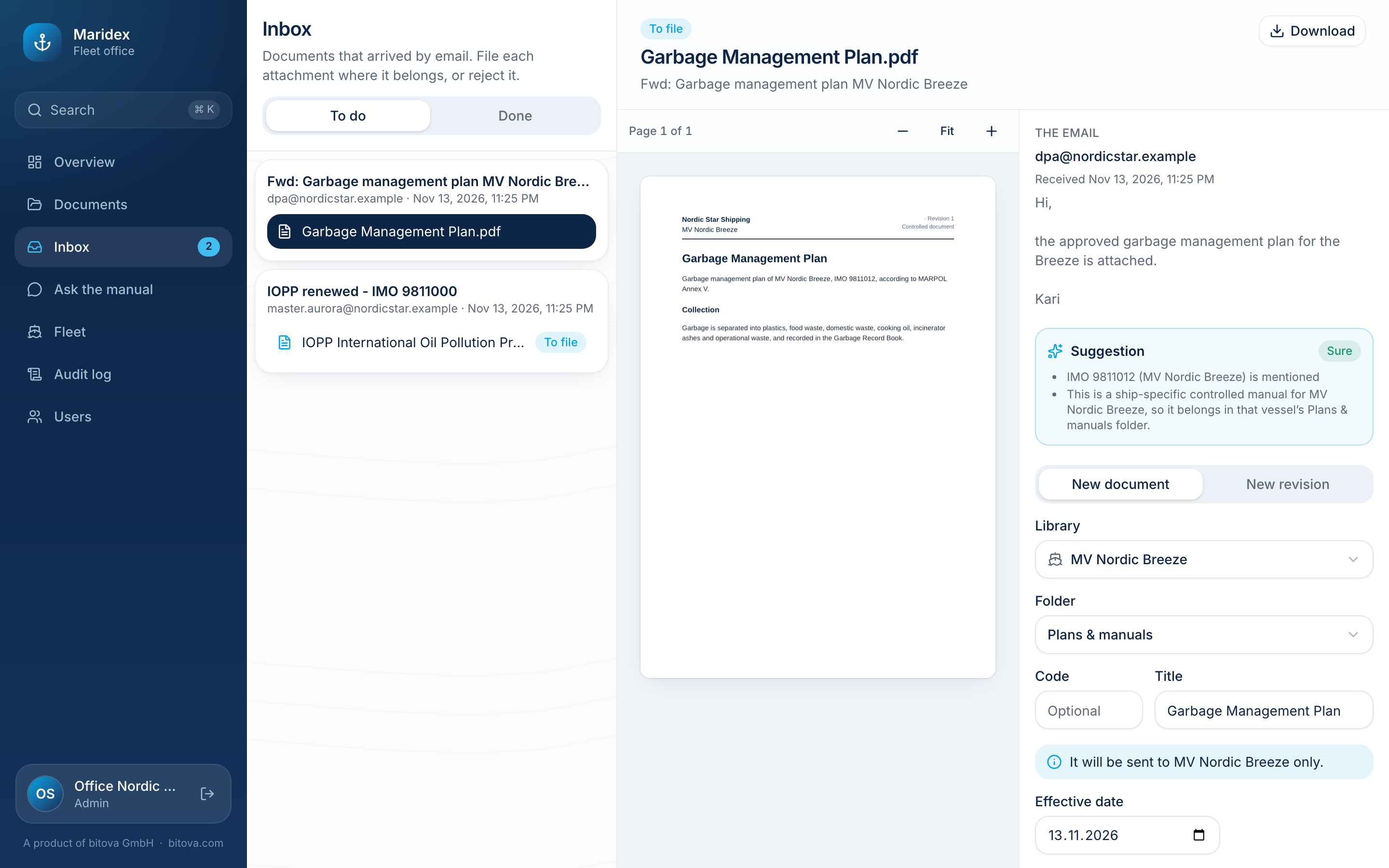
The document is published as if you had uploaded it: it goes to the ship PCs that receive its library with their next update. The inbox then moves on to the next attachment.
Rejecting
Section titled “Rejecting”Click Reject, optionally give a reason, and confirm. The attachment isn’t filed; the email stays in the inbox under Done.
Some attachments are rejected automatically: files that can’t be accepted for security reasons, and files over 100 MB. They are listed with the reason, so you know they arrived.
A product of bitova GmbHbitova.com