
Documents and folders
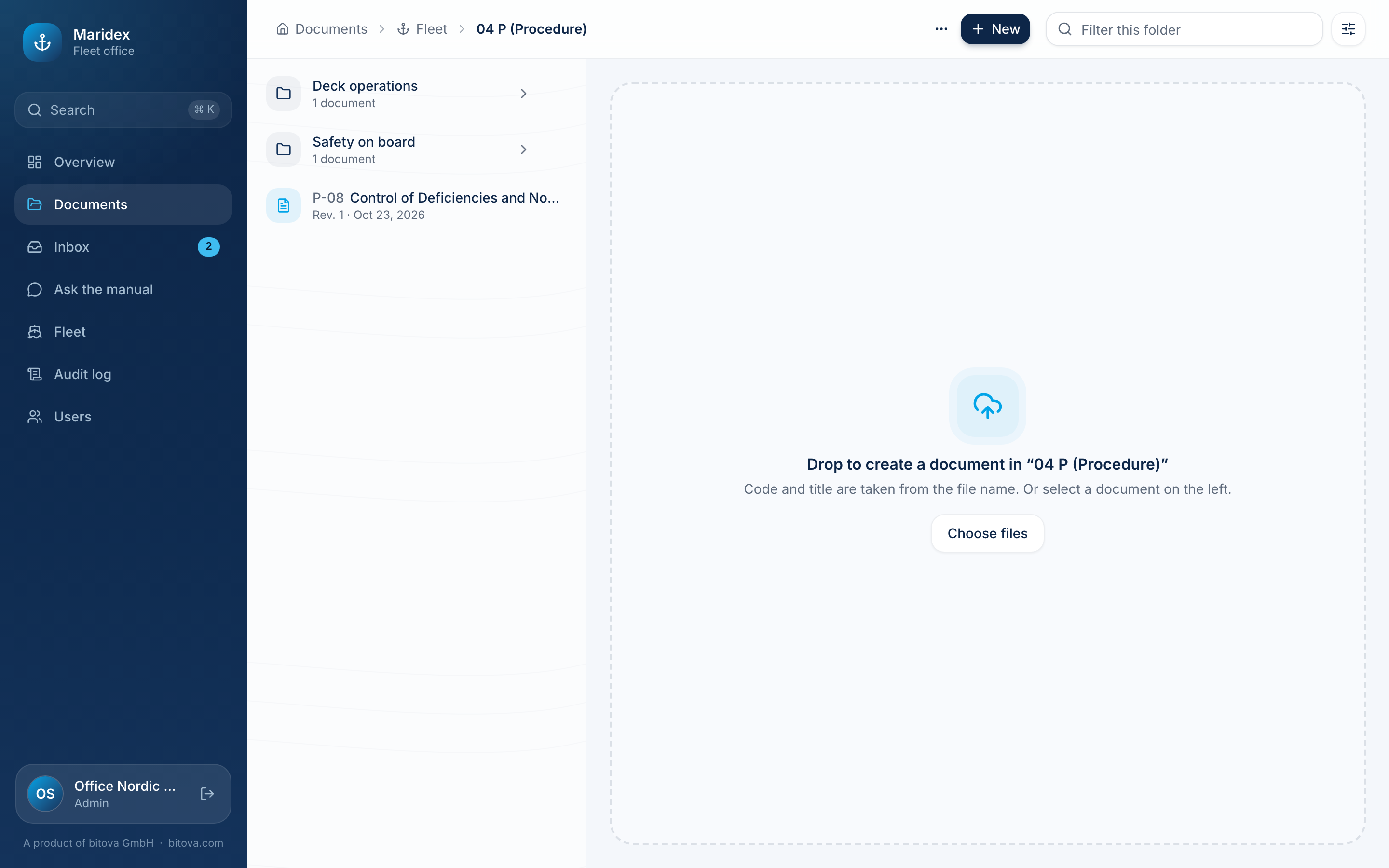
Open Documents in the menu. First you choose a library – Office, Fleet or a vessel. On the left are then its folders and the documents of the chosen folder, on the right the document you clicked. The path at the top shows where you are; click any part of it to go back.
Looking at a document
Section titled “Looking at a document”Click a document to see it. The preview shows the document itself, and on the right you find its details.
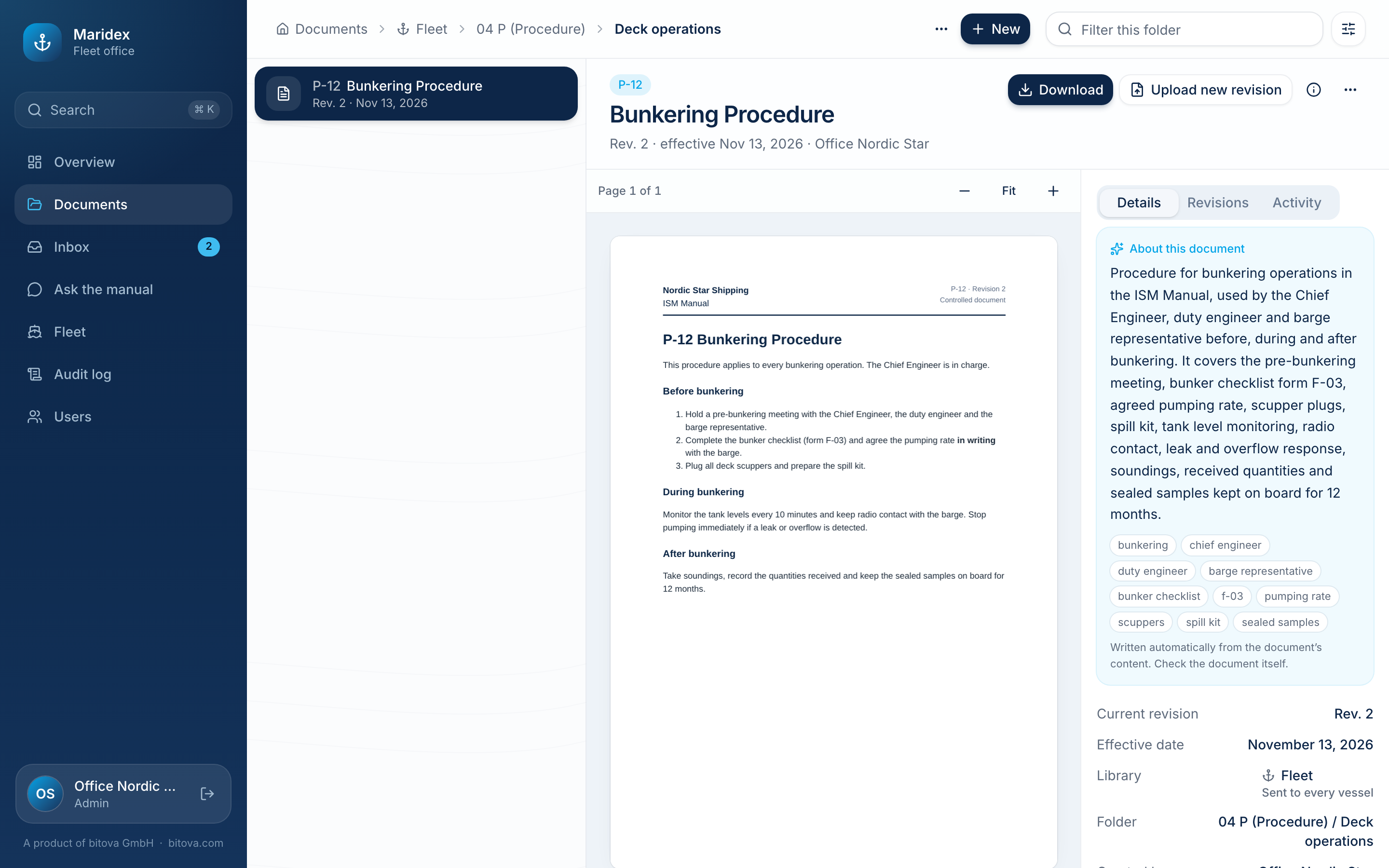
- Library – who receives the document: Stays in the office, Sent to every vessel or Sent to … only.
- About this document – a short description of what the document covers, written automatically from its content. It helps with searching; always check the document itself.
- Download – downloads the original file.
- The tabs Revisions and Activity show its history (see Revisions).
- Search & assistant shows whether the document is ready for search and the assistant. A new document is usually Ready within a few minutes. If it says Processing failed, click Process again.
Adding documents
Section titled “Adding documents”- Open the library and the folder where the document belongs.
- Click New → New document – or simply drag files from your computer onto the page.
- Code and title are taken from the file name (e.g. P-12 Bunkering Procedure.pdf → code P-12, title Bunkering Procedure). Check them and change them if needed.
- Choose the Effective date and click Create document.
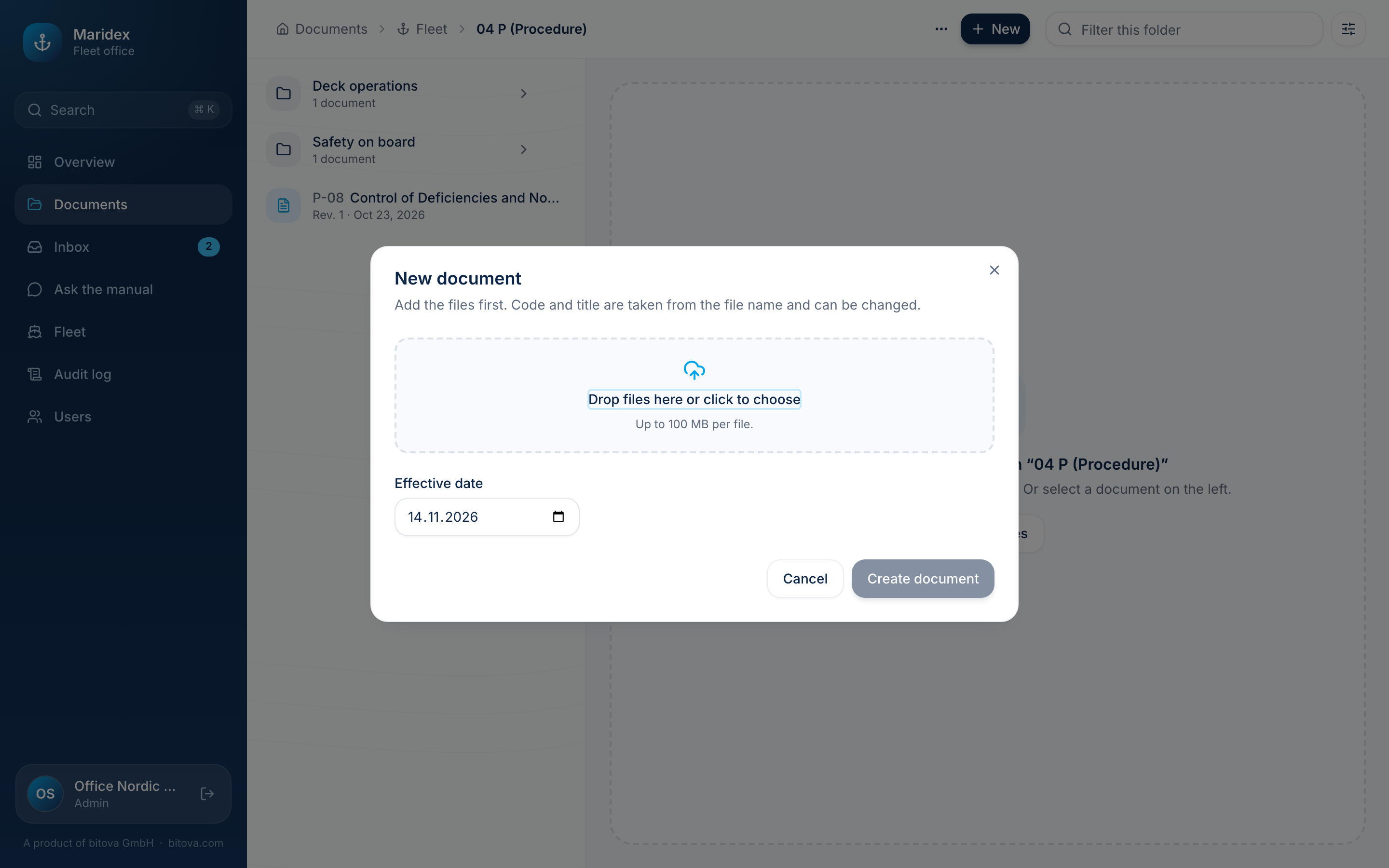
You can add several files at once – each becomes its own document. A Word file and its PDF are two separate documents.
As soon as a document is created, it is sent to the ship PCs that receive its library with their next update: all ship PCs for the fleet library, the vessel’s ship PCs for a vessel’s library, and none for the office library.
If the same file is already in this library, the upload says which document has it. If it is only in another library (e.g. a sister vessel’s), you see a note and can upload it anyway.
Folders
Section titled “Folders”- New → New folder creates a folder in the open library; inside a folder, New subfolder creates one below it.
- Folders stay in their library. To give a document to other ships, move the document.
- The … menu of a folder renames or deletes it. Only empty folders can be deleted.
Archiving
Section titled “Archiving”To take a document out of use, open it, click … → Archive and confirm. It is removed from the ship PCs that had it and hidden from the lists, but its whole history is kept. Use Show archived in the folder to see archived documents and Restore one if needed.
Finding your way quickly
Section titled “Finding your way quickly”- Filter this folder (top right) narrows the list while you type. Above the folders it filters the libraries, e.g. type a vessel’s name.
- The sliders button next to it sorts by name, effective date or last change, and filters by status or file type.
A product of bitova GmbHbitova.com