
Fleet and ship PCs
Open Fleet in the menu. It shows your vessels, their ship PCs and whether each PC has the current documents.
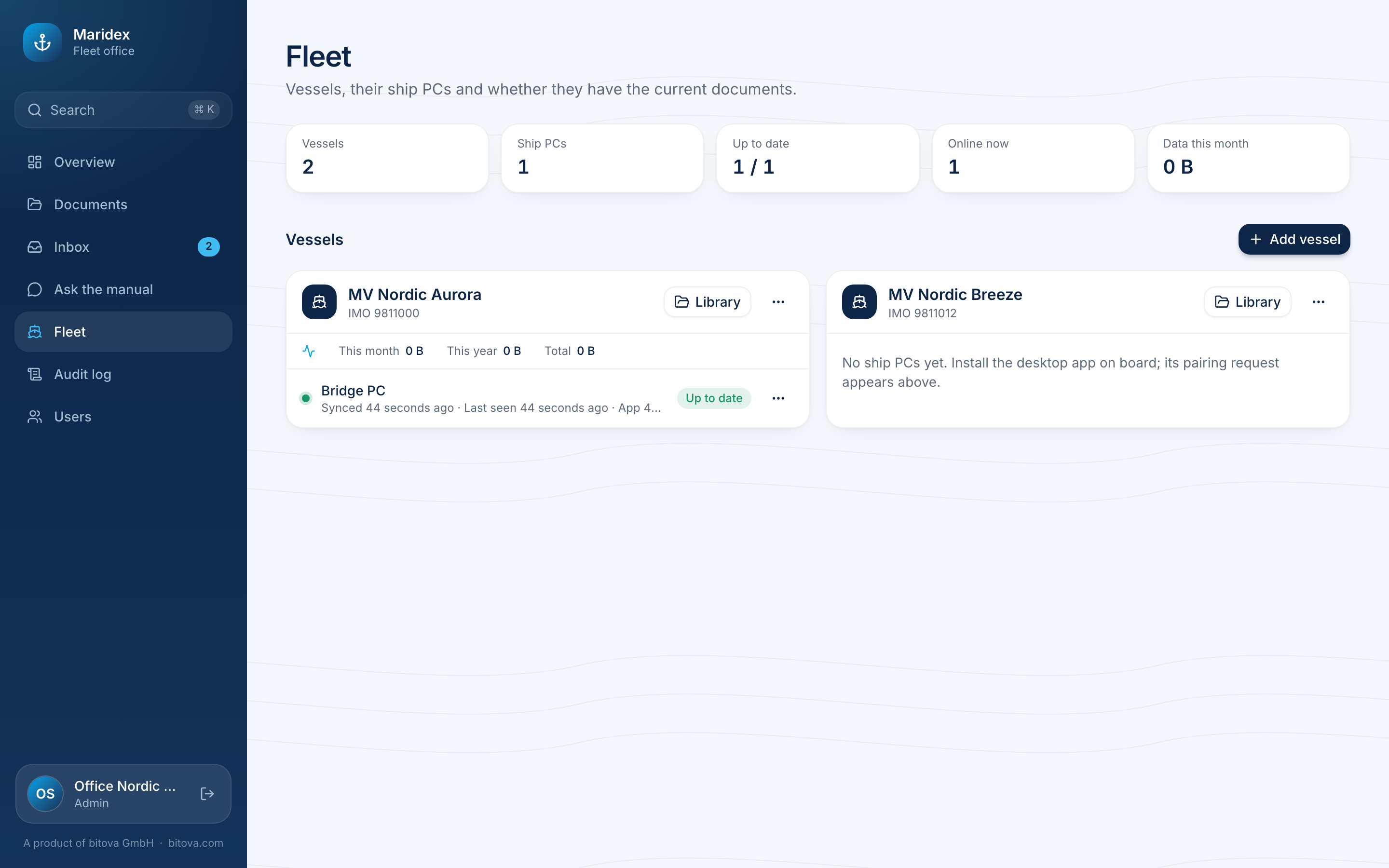
For each ship PC you see:
- Online / Offline and when it was last seen,
- Up to date – or how many documents it is behind, or that the last sync failed,
- the version of the app on the PC (Update needed if it is too old).
Adding vessels
Section titled “Adding vessels”Click Add vessel, enter the Vessel name (and optionally the IMO number) and click Add. You can also add a vessel while approving a ship PC (see below).
Every vessel gets its own library for its certificates, plans and manuals. Library next to the vessel’s name opens it. A vessel can only be deleted while its library has no documents; move them to another library first.
Approving a ship PC
Section titled “Approving a ship PC”When the app is set up on board, the ship PC sends a pairing request. It appears at the top under Waiting for approval, with the PC’s name, the ship it says it is on and a pairing code.
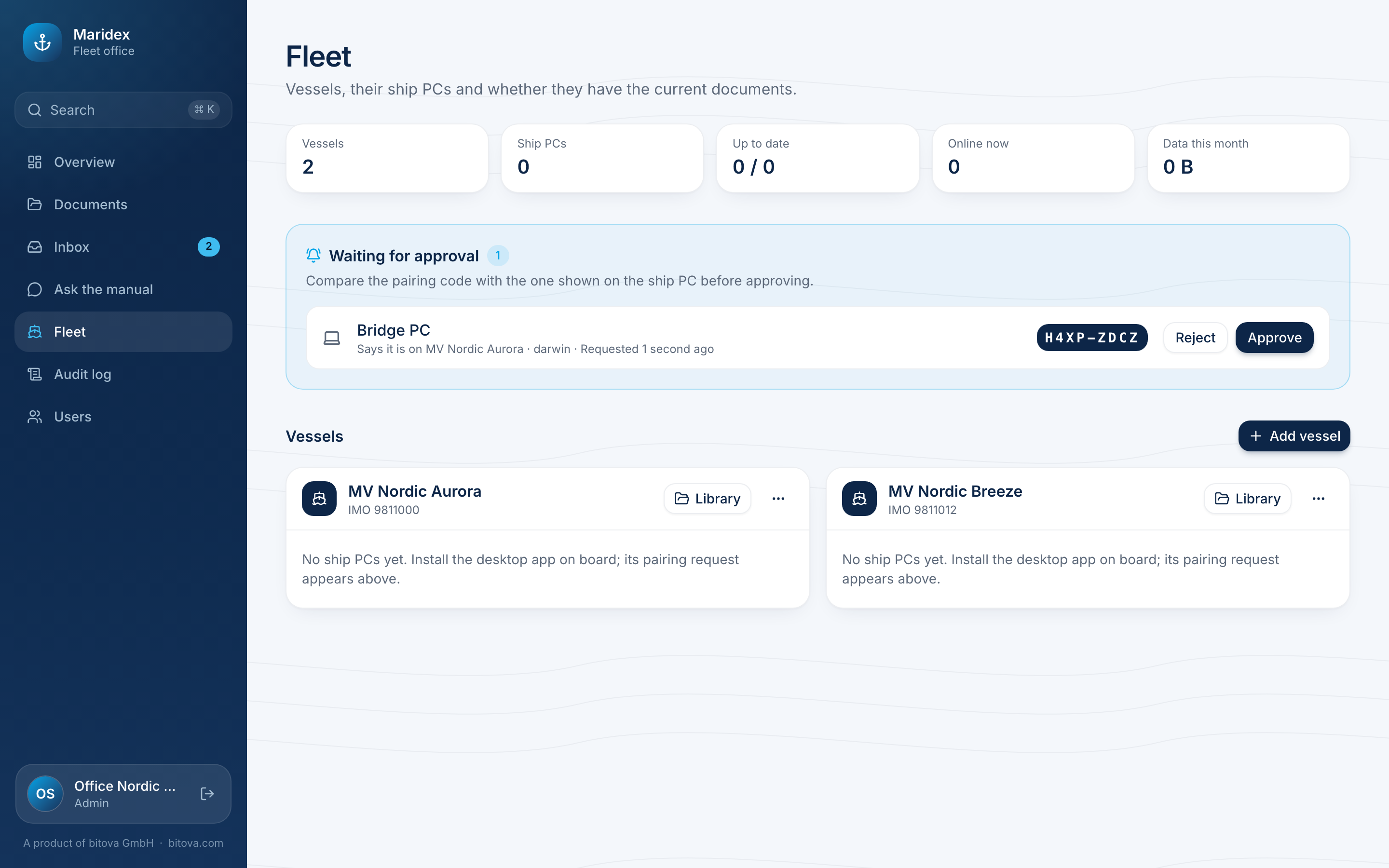
- Ask the person on board for the code shown on the ship PC.
- Click Approve.
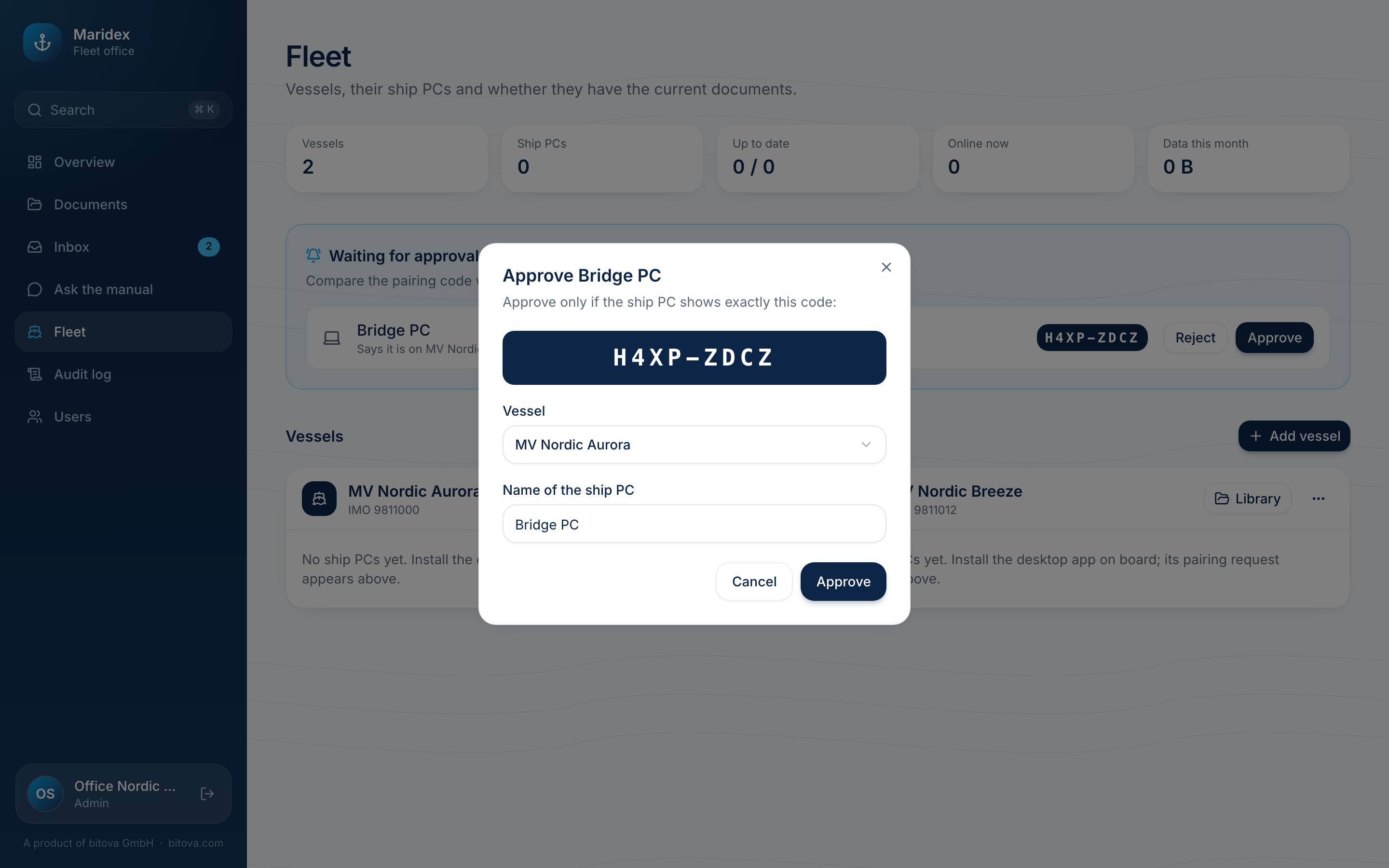
- Compare the code with the one in the window. Approve only if it is exactly the same.
- Choose the Vessel (or New vessel…) and check the Name of the ship PC.
- Click Approve.
The ship PC notices the approval by itself within a few seconds and downloads the fleet library and its vessel’s library. If you don’t recognise a request, click Reject.
What is on board
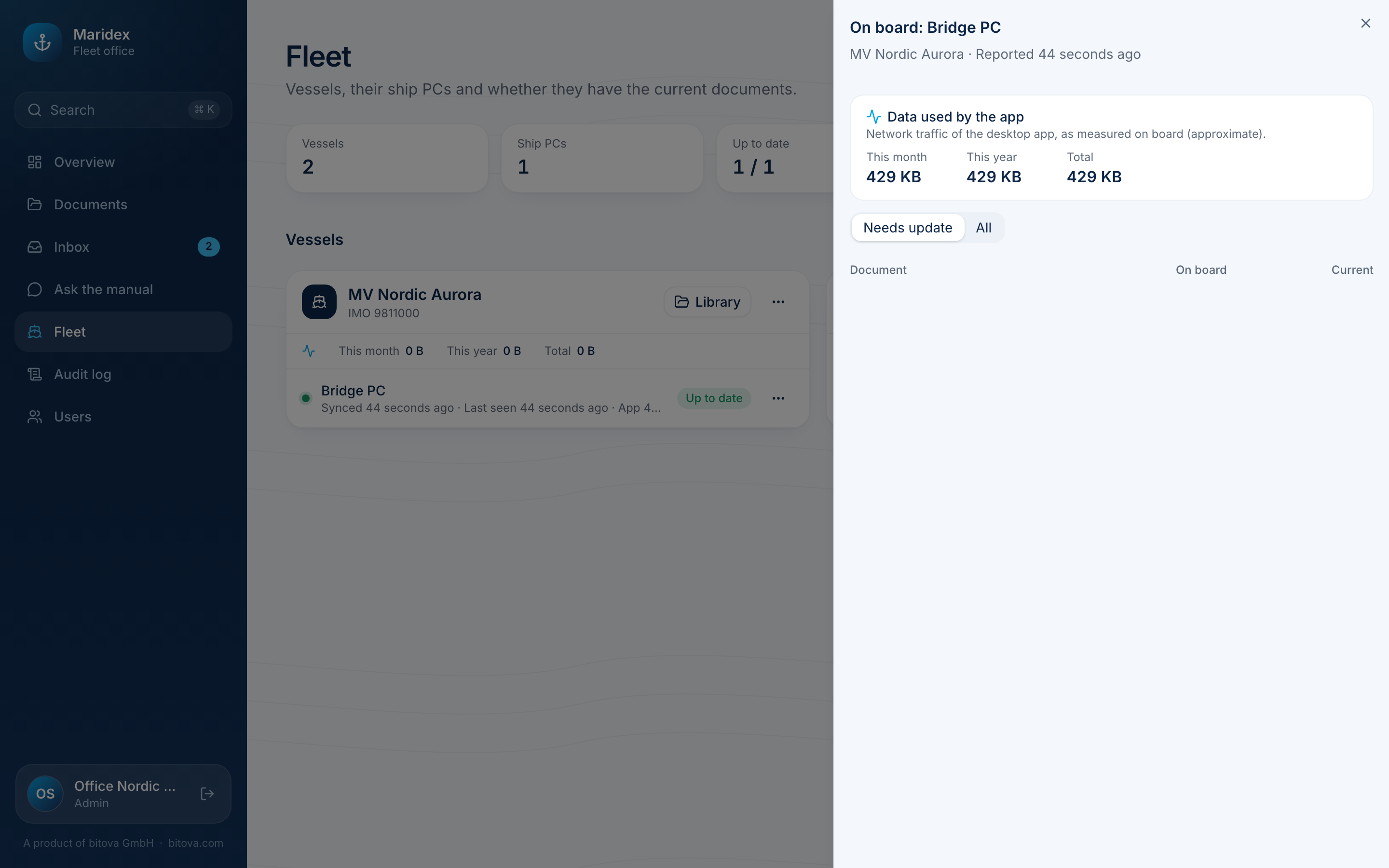
Section titled “What is on board”The … menu of a ship PC → What is on board lists every document with the revision the PC has and the current one: Up to date, Older revision, Missing, or Withdrawn, still on board.
Data usage on board
Section titled “Data usage on board”Many ships pay for satellite data. Each vessel shows how much data its ship PCs’ app used this month, this year and in total; each ship PC shows its number for this month. At the top, Data this month adds up the whole fleet. What is on board shows the numbers of one ship PC.
The app measures this itself and reports it every few minutes while it is online. The numbers are approximate and only include this app, not other programs on the ship PC.
Disconnecting a ship PC
Section titled “Disconnecting a ship PC”If a PC is replaced, lost or should no longer get the documents: … → Revoke access and confirm.
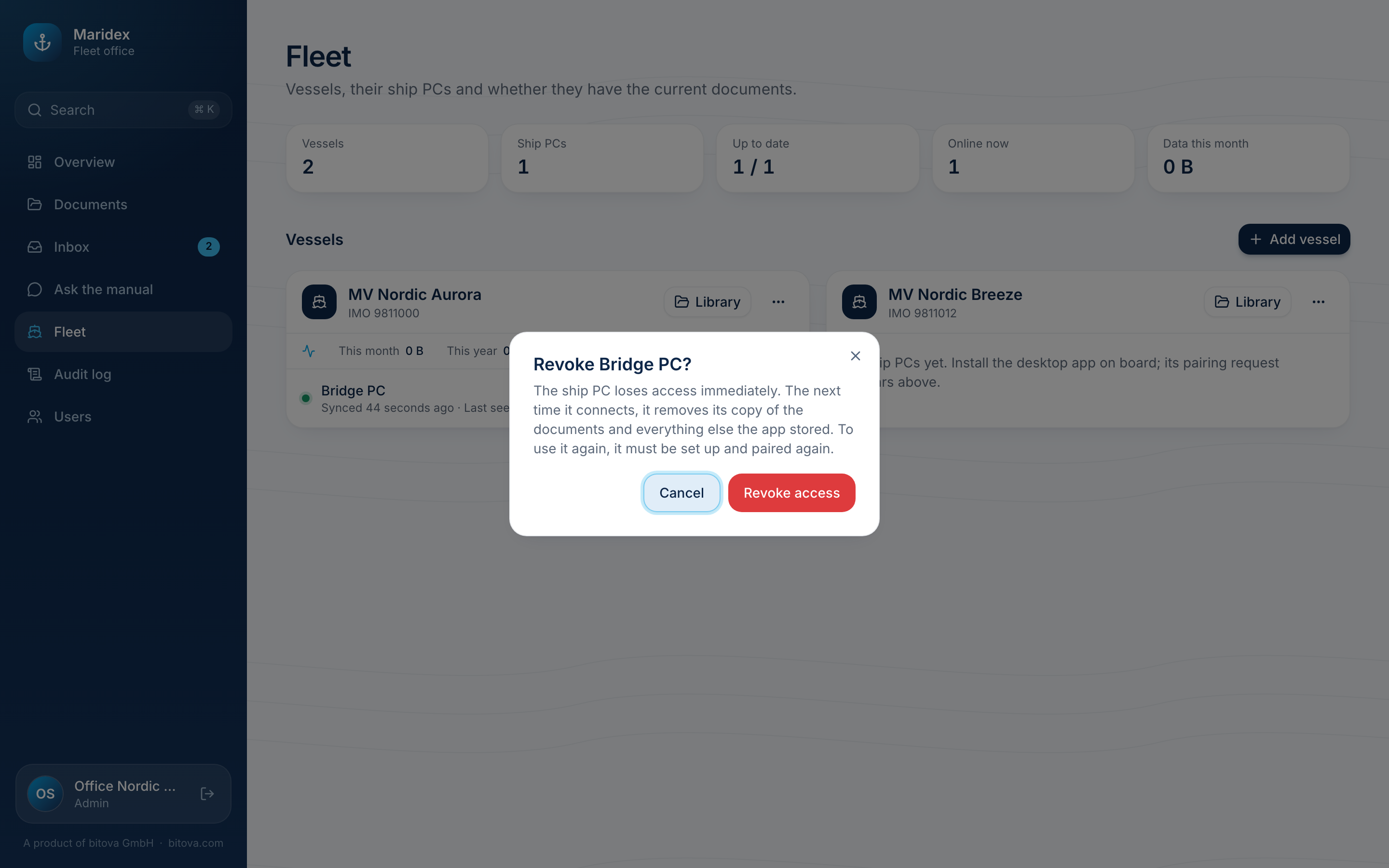
The PC loses access at once. The next time it connects, it removes its copy of the documents and everything else the app stored, and shows that the office disconnected it. To use it again, it has to be set up and approved again.
A product of bitova GmbHbitova.com